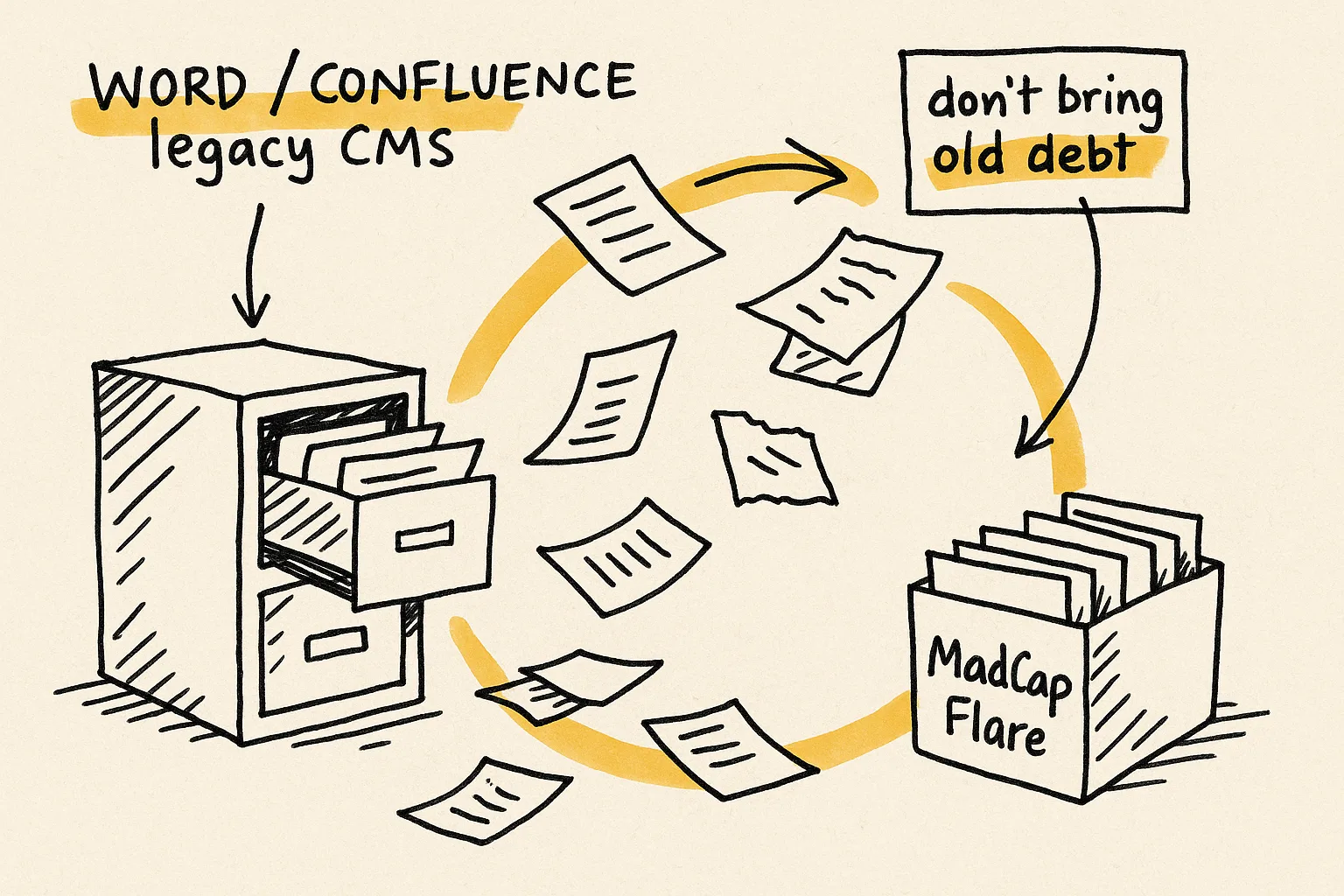
Word to MadCap Flare Migration
Word is the most common source for a first MadCap Flare project — and also the messiest. Inconsistent styles, direct formatting, embedded images, copy-pasted tables, and heading levels that don't match the intended topic structure. We've migrated 500,000+ pages — here's how Word content reaches Flare clean.





What imports cleanly from Word
MadCap Flare's Word import wizard reliably handles:
- Heading-based topic splits (split on Heading 1, Heading 2, or any chosen level).
- Word styles mapped to Flare CSS classes (one-to-one by default).
- Tables, including most cell-level formatting.
- Embedded images extracted to the Flare Content/Resources/Images folder.
- Hyperlinks and bookmarks converted to standard anchor links.
- Numbered and bulleted lists (with caveats around nested list continuation).
- Footnotes converted to Flare footnotes.
For Word documents written with consistent styles and a clean heading hierarchy, the wizard produces a usable Flare project. Most enterprise Word libraries are not that.
What does not survive the import (cleanly)
Manual bold, italic, font changes, and color overrides applied without styles import as inline CSS spans. The result is a Flare project peppered with inline styles that fight the stylesheet.
Word docs often use Heading 1 inconsistently or skip levels (H2 directly to H4). Splitting on Heading 1 produces too few topics; splitting on Heading 2 produces too many. Heading levels usually need cleanup before split.
Word tables often use fixed pixel or cm widths that don't behave responsively in Flare HTML5 output. PDF output is fine; web output needs the widths normalized.
Word's continuous list numbering doesn't survive a topic split. A numbered procedure that crosses a heading boundary loses its numbering continuation in Flare.
Embedded images extract with generic names (image1.png, image2.png) at the resolution they were pasted in — often too low for modern displays. Image renaming and rescaling are usually post-import cleanup tasks.
Word cross-references and field codes (e.g., StyleRef for chapter titles, page numbers) don't translate to Flare cross-references. They come over as static text and need to be rebuilt using Flare's xref system or variables.
Pre-migration cleanup checklist
- Normalize heading hierarchy. Walk the source documents and fix inconsistent heading levels. Decide which heading level becomes the Flare topic boundary, then make sure every intended-topic boundary uses that level — and only that level.
- Clear direct formatting. Run Word's "Clear All Formatting" on body text, then reapply via styles. This is the single biggest win for a clean Flare import.
- Inventory styles. List every Word style in use and what it should map to in Flare's CSS. Word docs typically accumulate dozens of unused styles — prune them before import.
- Audit tables. Identify tables with fixed widths, merged cells in awkward patterns, or content that should be lists rather than tables.
- Plan image renaming. Either rename images to a meaningful scheme before extraction, or budget time for post-import renaming. Generic image1.png references age badly.
- Decide on topic split level. Heading 1 produces few large topics. Heading 2 produces many small topics. Pick based on how the content will be reused and how users will navigate.
- Plan condition tags up front. If you have audience- or product-specific content marked with comments or coloured text in Word, design the Flare condition tag schema before import and apply conditions as part of the transform rules.
- Test with a representative document. Convert one full document end-to-end first. Build every target type. Review carefully. The problems in one doc are the problems across the library.
Recommended migration workflow
Audit
Inventory styles, heading consistency, direct formatting, tables, images, cross-references, and any audience/product variants. Identify what's structurally broken before conversion.
Target design
Define the Flare project: topic split level, CSS class hierarchy, condition tag schema, image naming scheme, page-layout spec, and TOC strategy.
Source cleanup
Normalize headings, clear direct formatting, prune unused styles, fix broken cross-references and field codes. Cleaner Word produces a cleaner import.
Scripted conversion
Run the Flare Word import with the mapping from step 2, then apply transform rules: normalize table widths, fix list numbering across split boundaries, rename images, extract snippets from duplicated content, and apply conditions.
Validation and handover
Link integrity, condition coverage, snippet usage, image references, page-layout bindings, and target builds — all checked before any writer touches the Flare project. Mapping docs + playbook delivered.
Typical timeline and risk profile
A typical Word-to-Flare migration of a 500-page library (across 10 to 30 documents) runs 3 to 6 weeks end-to-end. Most of the time is spent on source cleanup and target-architecture design — the conversion itself runs in hours once the rules are written.
The highest-risk items in a Word migration are usually:
- Heading inconsistency. Inconsistent heading levels produce a Flare TOC that doesn't match user expectations. Fix this in source.
- Direct formatting. Inline CSS spans from manual formatting overrides are the slowest cleanup in any Word migration. Clear and re-style in Word before conversion.
- Image quality. Images that were "good enough" in Word may not be good enough for modern HTML5 displays. Plan a rescale path early.
Engagements typically start at $5,000. Final scope depends on document count, page count, style consistency in source, table complexity, and how many output targets you need configured.
I can't thank you enough for this plugin. What a life saver! I am in the process of migrating 3 extensive product manuals from markdown to Flare, and it's just a breeze with your plugin. I can even replace tags on a page to apply different formatting. The content comes over so clean and beautiful, there's hardly any post-import work to do. I am extremely grateful and can only recommend this to anyone having to make the move from markdown to Flare.
Frequently asked questions about Word to Flare migration
Can we just drop our Word files into Flare's Word import wizard?
You can, and many teams do — the wizard handles the file-format part well. What it doesn't fix is messy source: inconsistent headings, direct formatting overrides, fixed-width tables, generic image names, and broken cross-references. Most of the time spent on a Word migration is in source cleanup and target-architecture design, not in the conversion step itself.
Should we split topics on Heading 1, Heading 2, or something else?
It depends on how the content is structured and how users will navigate. Heading 1 produces a small number of large topics that read well end-to-end but are awkward for search and reuse. Heading 2 produces many small topics ideal for reuse and search but can fragment narrative. We usually decide per-library based on the deliverable plan and user navigation model.
What happens to manual formatting like bold and italic without a style?
It imports as inline CSS spans on the affected text. The result is a Flare project where the stylesheet and the inline styles fight each other. The fix is to clear direct formatting and reapply via styles in Word before import. This is the single biggest win for a clean Word migration.
How do we handle audience or product variants in Word?
If they're marked (comments, colored text, hidden text, or a custom property), the transform rules can read those markers and apply Flare condition tags during conversion. If they're unmarked, the variants need to be identified in the pre-migration audit and either marked in source or applied manually during the cleanup pass.
Can you migrate from very large Word libraries (10,000+ pages)?
Yes. Multi-document libraries are usually staged into batches with the most representative documents converted first to validate the transform rules. Later batches are converted against the same rule library, which keeps the architecture consistent.
What about Word documents with extensive use of SmartArt, equations, or embedded objects?
SmartArt and equations typically arrive as flattened images. Embedded OLE objects often don't survive at all. If your docs rely on these, plan a rebuild path before conversion — usually as SVG (for diagrams), as Flare image references with alt text (for equations), or as MadCap-native equivalents (for objects).
Send one Word document. We'll show you exactly what your migration will look like.
500K+ pages migrated · 17+ years · Typical Word projects from $5,000 · 3–6 weeks for a typical 500-page library.
Back to MadCap Flare migration services · Related: MadCap Flare conversion.